
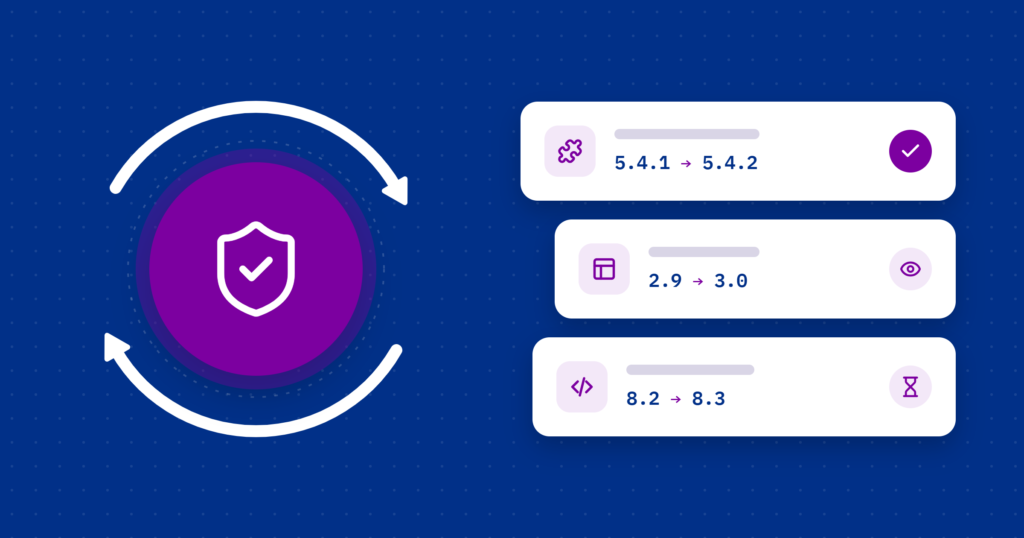
If you have a WordPress site, you’ve probably seen update notices. They come in all kinds: WordPress itself, plugins, themes, and even the PHP version on your hosting account. Just this past week, I worked on sites that had dozens of pending updates!
Most site owners fall into one of two camps. The first group ignores updates and builds up a lot of “technical debt.” Little by little, parts of the site stop working, often without anyone noticing. Meanwhile, hosting companies keep making changes, and eventually those changes outpace an older site’s setup.
The second group turns on automatic updates and never thinks about them again. That can work for a while. But when you don’t know what’s being updated, it’s much harder to figure out what went wrong when something breaks.
Both approaches have their risks. Knowing why updates exist, and how to handle them sensibly, goes a long way toward keeping your site running well.
Why Updates Matter
Updates come from four places: WordPress core, plugins, themes, and PHP. Each one does something different, but they’re all released to fix problems or make things better. Here are the five main reasons you’ll see them.
1. Security Fixes
This is the big one. New vulnerabilities are found all the time, not just in WordPress but in third-party plugins and in PHP itself. Once a vulnerability is made public, attackers start scanning the web for sites that haven’t patched it yet.
This isn’t only a WordPress problem. We’ve all seen news about banks, government agencies, and major online retailers getting hacked. But WordPress is my area, so that’s what I’ll focus on here.
Outdated plugins are one of the most common ways WordPress sites get hacked.
2. Compatibility
WordPress changes. PHP changes. Browsers change. Updates keep all of those pieces working together. For example, a plugin written for an older version of PHP may break when your host upgrades PHP, unless the plugin’s developer updates it to keep up.
3. Performance
Many updates make things run faster or more efficiently. That might mean fewer database queries, lower memory use, or admin screens that load more quickly.
4. Bug Fixes
A lot of updates are small. They fix odd bugs that only show up in certain situations, like a checkout glitch, a layout problem, or an error message in the admin area.
5. Advertising
Yes, really. Some plugin and theme updates exist mostly to promote something. Ever logged in and seen a banner in your dashboard for a Black Friday or New Year’s sale? Sometimes that banner came with an update. And sometimes it’s the only thing that changed!
The Problem with Automatic Updates
WordPress lets you turn on automatic updates for core, plugins, and themes. Small security releases of WordPress core already install automatically by default. PHP is the exception, because it’s part of your hosting account, not your site, and WordPress has no control over it.
Automatic updates sound ideal, and sometimes they are. But they aren’t always the best choice for everything.
1. You Don’t Know What Changed
When updates run on their own, you usually don’t know:
- What was updated
- What changed in it
- Whether it affected anything important
If something breaks a few days later, tracing it back to an automatic update can take a while.
2. Plugin and Theme Conflicts
Plugins don’t work in a vacuum. An update to one can clash with another plugin, your theme, or custom code on your site. Automatic updates don’t check for that. They install the new version and stop there.
3. Major Updates Carry More Risk
Minor updates are usually low-risk. Major updates can change a lot. WordPress core treats the two differently, but the auto-update setting for plugins and themes doesn’t. It installs every new version, big or small. On top of that, not every plugin developer numbers versions in a way that tells you which is which.
4. Limited Rollback
Since version 6.6, WordPress will undo a plugin auto-update if it causes a fatal error that crashes the site. That helps, but it won’t catch a broken contact form, a checkout that quietly stops working, or a messed-up layout. For those, you still need:
- A recent backup
- A way to roll back
- Someone who can figure out what went wrong
Automatic updates don’t remove that work. You just find out about the problem later.
A Better Approach
I’m not suggesting you avoid updates. The point is to stay in control and know what’s happening on your site. Here’s what usually works best:
- Security fixes: apply them quickly.
- Major updates: review and test them first.
- PHP upgrades: make sure WordPress, your theme, and your plugins support the new version before switching.
- Backups: always make one before running updates.
That way, updates keep your site safe without catching you off guard.
How I Handle It
Updates are a normal part of owning a website. Ignoring them puts your site at risk, but putting everything on autopilot can create its own problems.
For my maintenance clients, I read the changelog for every update, keep a record of what changed, and run some basic tests. I also make a backup before applying anything, so if something goes wrong I can quickly find the cause and roll it back. Sometimes I report a bug to the developer and hold off on that update until a fixed version comes out.
In my experience, the sites that run best are the ones where someone actually pays attention to what gets updated, and when.